> ## Documentation Index
> Fetch the complete documentation index at: https://statsig-4b2ff144-kill-dead-node-pages.mintlify.site/llms.txt
> Use this file to discover all available pages before exploring further.
# Databricks
## Overview
To set up connection with Databricks, Statsig needs the following
* API Key
* Server Hostname
* HTTP Path
We can use any cluster in your project to connect to your data, but we recommend using a databricks [SQL warehouse/endpoint](https://docs.databricks.com/sql/admin/sql-endpoints.html) so that the cluster does not need to spin up for every pull.
### API Key
You can generate a new API key by going to "User Settings" in your Databricks console. There, you should be able to generate a new token as shown below.
 You can also use a personal access token for a service principal. Generate one by following the steps in the doc [here](https://docs.databricks.com/en/administration-guide/users-groups/service-principals.html#manage-personal-access-tokens-for-a-service-principal).
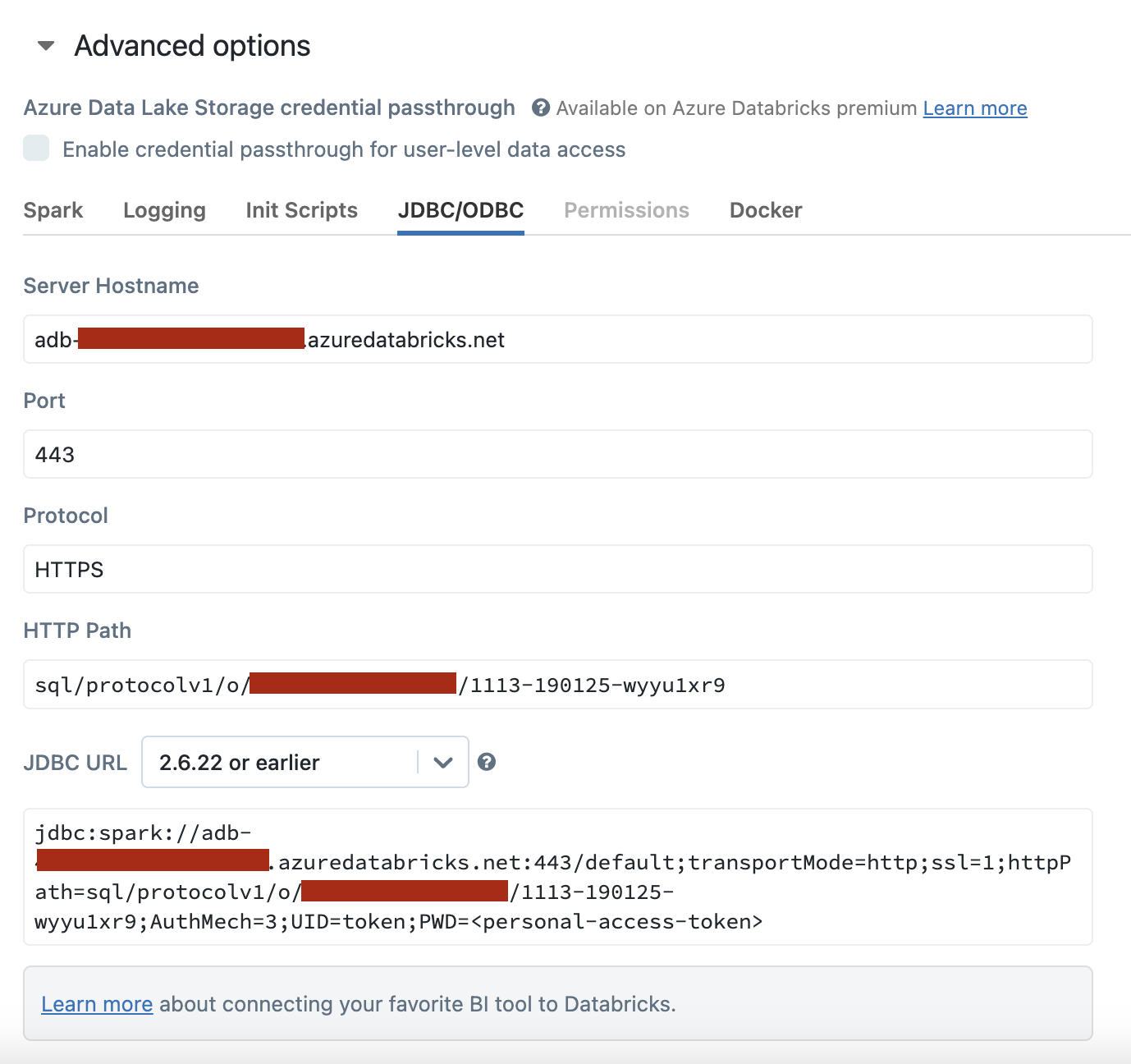
### Server Hostname & HTTP Path
You can find your Server Hostname and HTTP Path in your Databricks console by going to your specific cluster, navigating to the "Configuration" tab and expanding the "Advanced options."
You can also use a personal access token for a service principal. Generate one by following the steps in the doc [here](https://docs.databricks.com/en/administration-guide/users-groups/service-principals.html#manage-personal-access-tokens-for-a-service-principal).
### Server Hostname & HTTP Path
You can find your Server Hostname and HTTP Path in your Databricks console by going to your specific cluster, navigating to the "Configuration" tab and expanding the "Advanced options."